
If you’re at the point where planning is no longer about numbers alone but has become more complex – with its versions, approvals, scenarios, and ownerships – you may start looking for an enterprise planning platform. But if you’re already using Qlik, it’s good to know that with Inphinity, you can build an enterprise-grade planning directly on top of your existing environment.
Here’s how to do that.
If you prefer watching before reading, here’s the latest webinar we held on the topic of enterprise-grade planning in Qlik.
Good enterprise planning begins with connected data and a semantic model. This is to provide a consistent structure for the entire following process. Therefore, before discussing workflows, approvals, or forecasts, it’s essential to start with the foundation. Whether you’re running FP&A in an international shared service center, business forecasting for a dairy producer, or S&OP planning for a security device manufacturer, the principle remains the same: planning works best when it sits on top of connected business data rather than beside it.
Another thing is the way you build plans. If you do that from scratch (on an enterprise level) – if there are no values in place and you have to fill them in yourself, that can really be a blocker. But planning values can be pre-calculated using historical performance or previous budgets. Planners can also take advantage of forecasts and predictive methods. Then, the focus is on refining assumptions (and making decisions) rather than populating empty forms.
You should always have your planning tools ready to support the process around the numbers. Otherwise, you can end up with one sheet for top-down planning, another for bottom-up planning, and then somehow VLOOKUPing it all together to arrive at the final plan. With Inphinity, planning mechanics become part of the process itself.
Two detailed examples:

Of course, enterprise planning doesn’t stop at changing values – numbers need to be reviewed, approved, and tracked throughout the planning cycle. Inphinity provides the workflow, context, and governance layers needed to support that process directly in Qlik.
A forecast version is rarely the end of the story. Once a version exists, teams typically want to explore different outcomes. What happens if sales outperform expectations? What happens if demand slows down? What happens if… You name it.
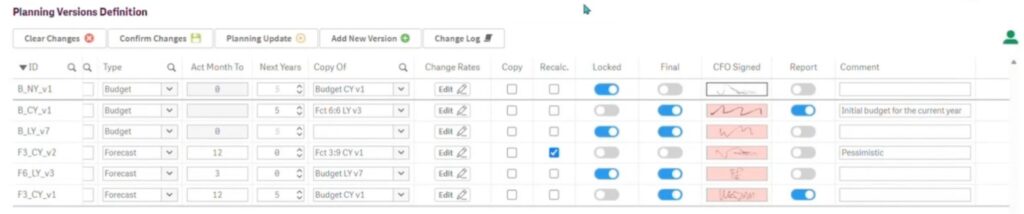
Let’s take a 3+9 forecast as an example, where three months are already closed, while the remaining nine months are still (to be) planned. Even that version may have multiple scenarios attached to it – let’s keep it simple, saying one’s optimistic, one’s realistic. The goal here is not to create more plans, but to evaluate which assumptions are most feasible and which version should ultimately serve as the baseline for future performance evaluation.
This is often where considering standalone planning platforms comes in. Yet if the underlying data, reporting, and governance already live in Qlik, planning modules can remain there as well.
Planning frameworks should allow different planning modules to exchange information (and eventually come together in a single P&L view) simply because sales plans affect operations, operations plans affect costs, and costs affect financial outcomes.
No matter which department the modules belong to, the principle remains the same: changes made in one area of the business should not remain isolated from the others.
We’ve all met planners who come to the system and change their minds every day. Or ones who don’t make any changes at all, no matter the circumstances. And, there are a lot of people who simply don’t want to be bothered with planning at all.
A complete Change log is not here to create a “Big Brother” environment, but to help you understand how the final number was created – it shows what changed, when it changed, and who changed it. Planning does influence hiring decisions, marketing campaign investments, cash flow expectations, etc., so yes, auditability is an important part of it.
A new scenario often means new selections, filters, adjustments – simply a long sequence of clicks before anyone can evaluate the outcome.
Now, imagine that instead of manually applying adjustments, you just describe what you want to do – in your natural language – and it gets done.
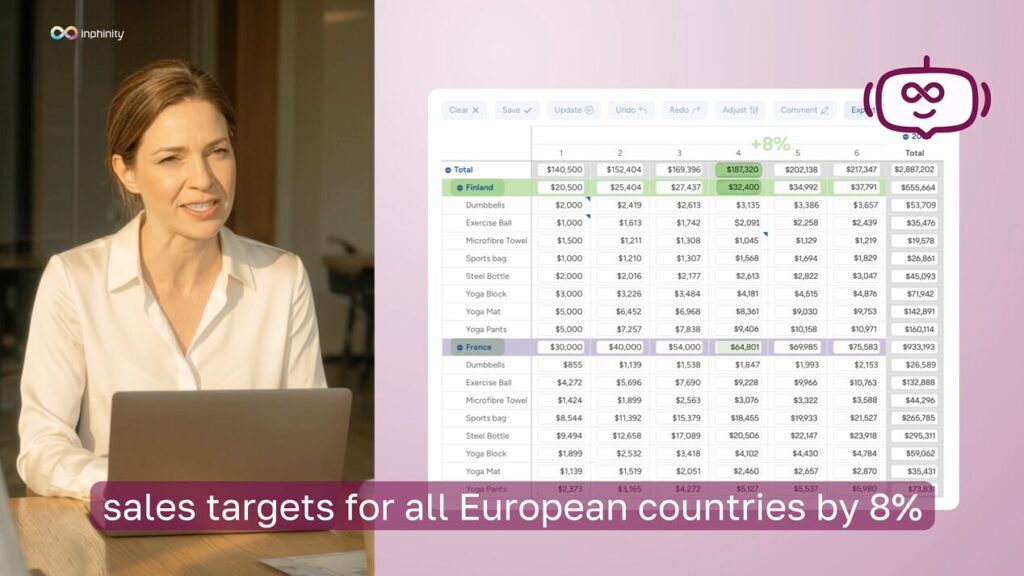
This is exactly why we designed Inphi – our “AI planning mate”. (Here’s a quick teaser!)
You can tell it, for example: “Increase the plan by 75.5% for all European countries except France.”
Inphi interprets the request, performs the adjustments, and provides a summary of what changed. You can then review the results, undo or redo individual actions, and make further manual adjustments. Humans are the final step in the process = you always decide whether to save the changes.
You can build enterprise-grade planning directly in Qlik with Inphinity. The planning layer can be built where your data, analytics, and decision-making already happen.
It starts with a solid foundation: connected data, a semantic model, and pre-calculated values that give planners a meaningful starting point.
From there, you can use Inphinity to:
The result is a planning process that remains inside Qlik while providing the governance, flexibility, and control typically associated with dedicated planning platforms. If you’d like to discuss your planning use case or explore what’s possible in your environment, just reach out to Mária, our Chief Product Officer.